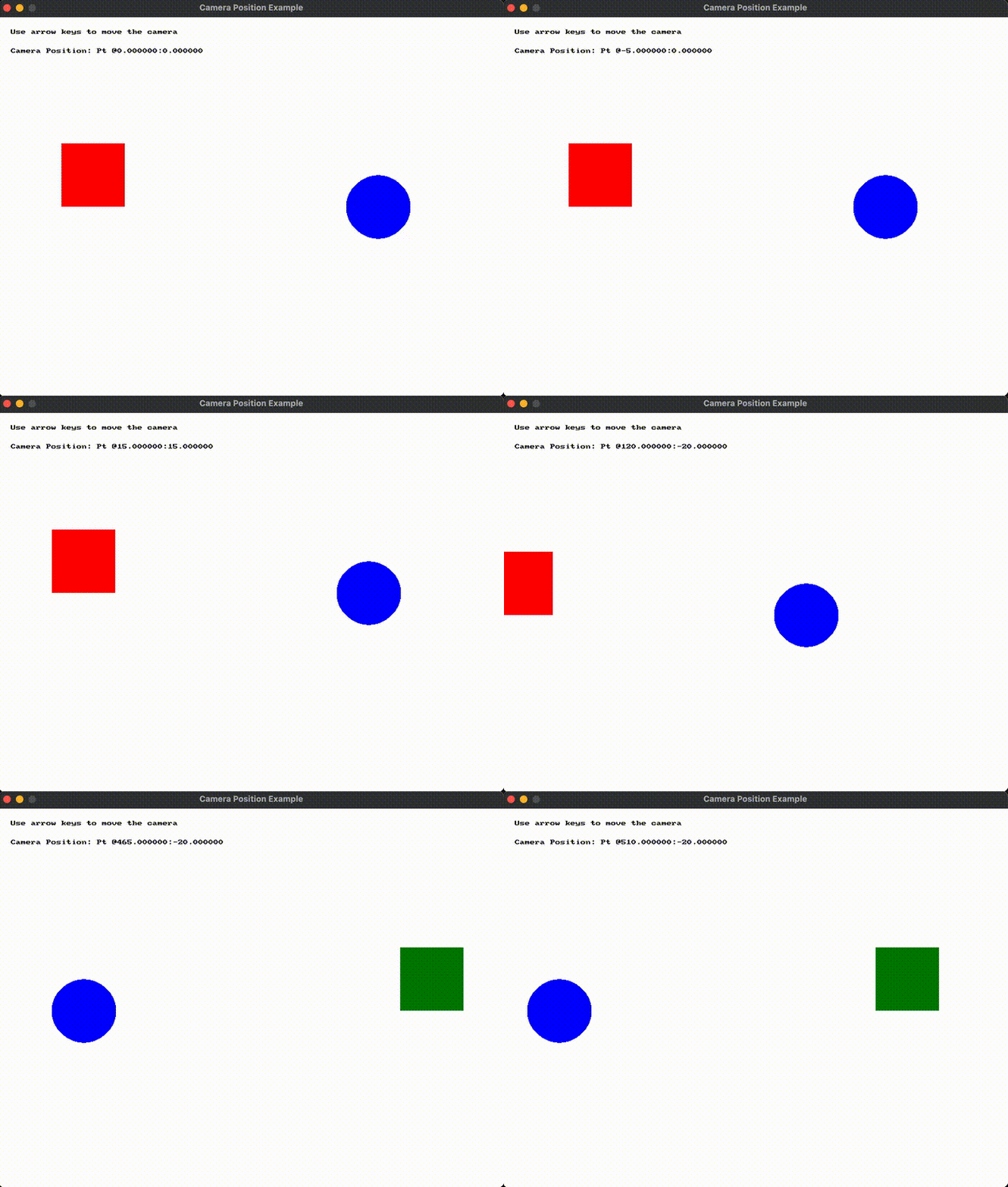
Returns the position of the camera in game coordinates. This will be the coordinate of the upper left corner of the screen.
Return Type: Point 2d
Returns: The position of the camera as a point_2d.
Signatures:
point_2d camera_position ()
public static Point2D Camera . Position { get }
public static Point2D SplashKit . CameraPosition ();
function CameraPosition (): Point2D
Usage: {</>}
See Code Examples Example 1 : Display the current camera position.
open_window ( " Camera Position Example " , 800 , 600 );
while ( ! quit_requested ())
// Move the camera using the arrow keys
point_2d camera = camera_position ();
clear_screen ( color_white ());
// Stationary objects in the world
fill_rectangle ( color_red (), 100 , 200 , 100 , 100 );
fill_circle ( color_blue (), 600 , 300 , 50 );
fill_rectangle ( color_green (), 1100 , 200 , 100 , 100 );
" Use arrow keys to move the camera " ,
" Camera Position: " + point_to_string (camera),
using static SplashKitSDK . SplashKit;
OpenWindow ( " Camera Position Example " , 800 , 600 );
// Move the camera using the arrow keys
if ( KeyDown ( KeyCode . LeftKey ))
if ( KeyDown ( KeyCode . RightKey ))
if ( KeyDown ( KeyCode . UpKey ))
if ( KeyDown ( KeyCode . DownKey ))
Point2D camera = CameraPosition ();
ClearScreen ( ColorWhite ());
// Stationary objects in the world
FillRectangle ( ColorRed (), 100 , 200 , 100 , 100 );
FillCircle ( ColorBlue (), 600 , 300 , 50 );
FillRectangle ( ColorGreen (), 1100 , 200 , 100 , 100 );
" Use arrow keys to move the camera " ,
" Camera Position: " + PointToString (camera),
namespace CameraPositionExample
public static void Main ()
SplashKit . OpenWindow ( " Camera Position Example " , 800 , 600 );
while ( ! SplashKit . QuitRequested ())
SplashKit . ProcessEvents ();
// Move the camera using the arrow keys
if ( SplashKit . KeyDown ( KeyCode . LeftKey ))
SplashKit . MoveCameraBy ( - 5 , 0 );
if ( SplashKit . KeyDown ( KeyCode . RightKey ))
SplashKit . MoveCameraBy ( 5 , 0 );
if ( SplashKit . KeyDown ( KeyCode . UpKey ))
SplashKit . MoveCameraBy ( 0 , - 5 );
if ( SplashKit . KeyDown ( KeyCode . DownKey ))
SplashKit . MoveCameraBy ( 0 , 5 );
Point2D camera = SplashKit . CameraPosition ();
SplashKit . ClearScreen ( SplashKit . ColorWhite ());
// Stationary objects in the world
" Use arrow keys to move the camera " ,
SplashKit . OptionToScreen ()
" Camera Position: " + SplashKit . PointToString (camera),
SplashKit . OptionToScreen ()
SplashKit . RefreshScreen ( 60 );
SplashKit . CloseAllWindows ();
open_window ( " Camera Position Example " , 800 , 600 )
while not quit_requested ():
# Move the camera using the arrow keys
if key_down ( KeyCode.left_key ):
if key_down ( KeyCode.right_key ):
if key_down ( KeyCode.up_key ):
if key_down ( KeyCode.down_key ):
camera = camera_position ()
clear_screen ( color_white ())
# Stationary objects in the world
fill_rectangle ( color_red () , 100 , 200 , 100 , 100 )
fill_circle ( color_blue () , 600 , 300 , 50 )
fill_rectangle ( color_green () , 1100 , 200 , 100 , 100 )
draw_text_no_font_no_size_with_options (
" Use arrow keys to move the camera " ,
draw_text_no_font_no_size_with_options (
" Camera Position: " + point_to_string ( camera ) ,
refresh_screen_with_target_fps ( 60 )
Output :
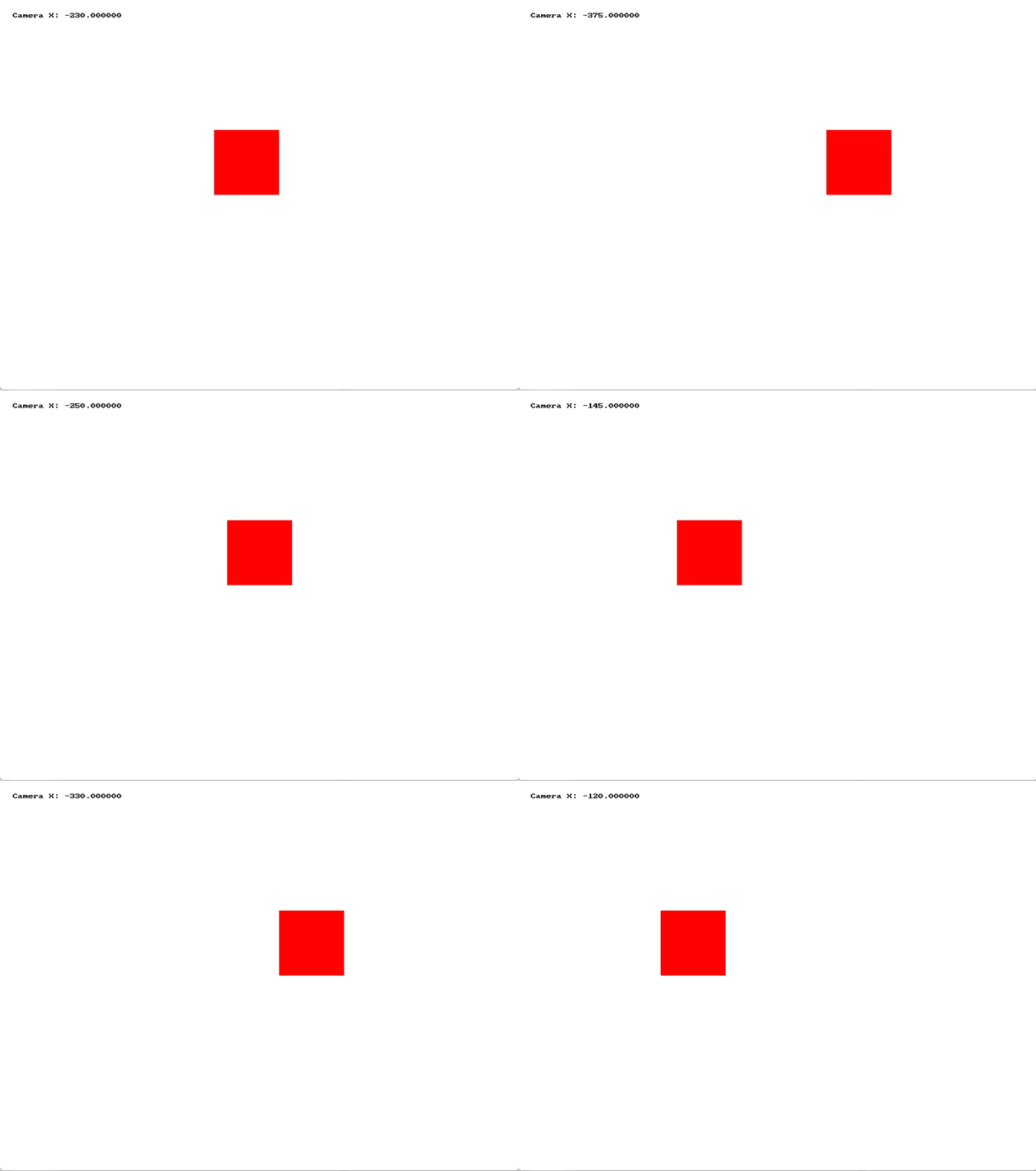
Returns the x location of the camera in game coordinates. This represents the left most x value shown on the screen, with the right of the screen being at camera x + screen width.
Return Type: Double
Returns: The x location of the camera in game coordinates.
Signatures:
public static double Camera . X { get }
public static double SplashKit . CameraX ();
function CameraX (): Double
Usage: {</>}
See Implementations Tutorials and Guides :
API Documentation Code Examples :
Set Camera X : Set the camera X position using the arrow keys.
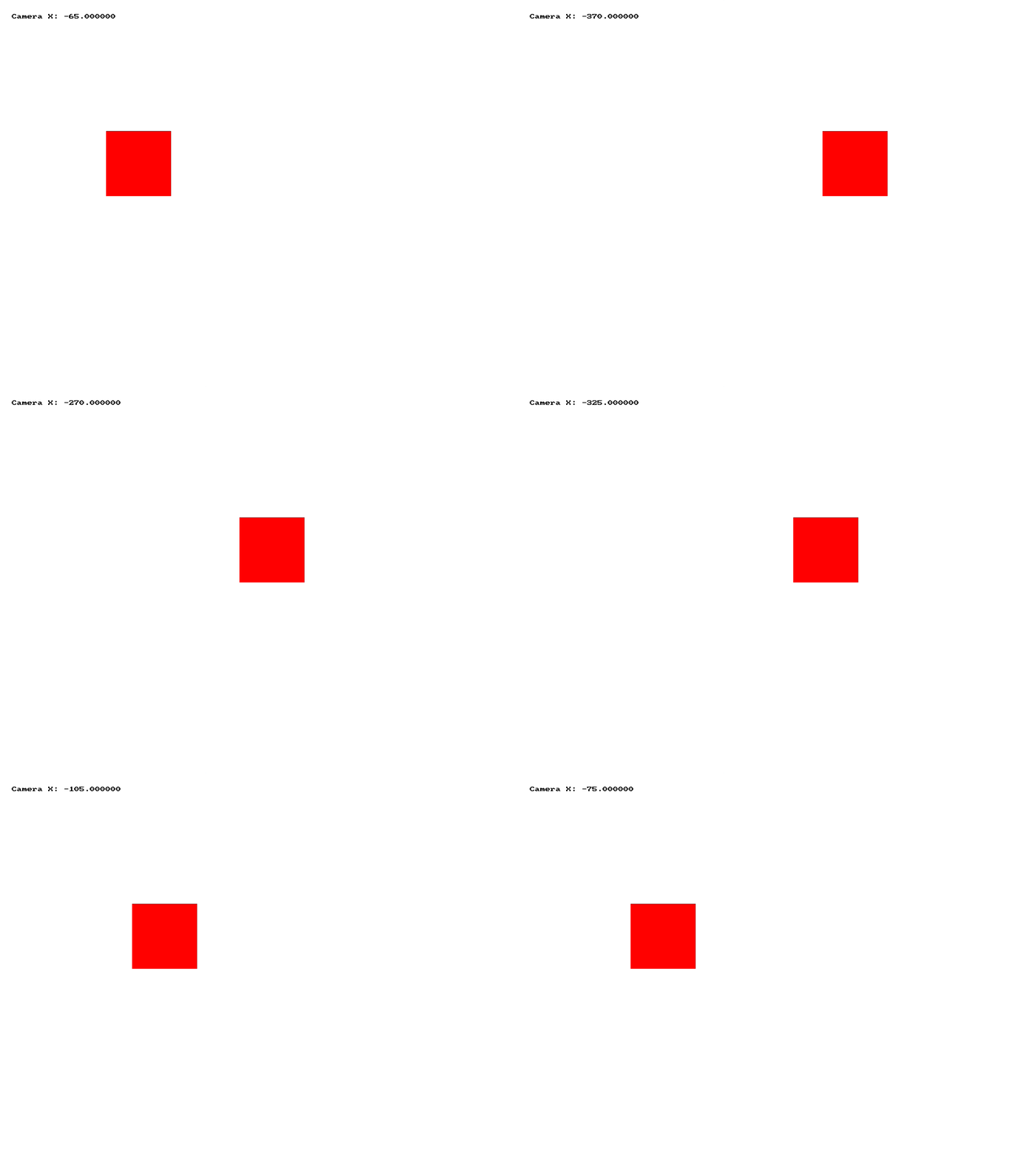
See Code Examples Example 1 : Read the camera X position while moving horizontally.
open_window ( " Camera X Example " , 800 , 600 );
while ( ! quit_requested ())
clear_screen (COLOR_WHITE);
fill_rectangle (COLOR_RED, 100 , 200 , 100 , 100 );
fill_rectangle (COLOR_GREEN, 1000 , 200 , 100 , 100 );
draw_text ( " Camera X: " + std:: to_string ( camera_x ()),
using static SplashKitSDK . SplashKit;
OpenWindow ( " Camera X Example " , 800 , 600 );
if ( KeyDown ( KeyCode . LeftKey ))
if ( KeyDown ( KeyCode . RightKey ))
ClearScreen ( ColorWhite ());
FillRectangle ( ColorRed (), 100 , 200 , 100 , 100 );
FillRectangle ( ColorGreen (), 1000 , 200 , 100 , 100 );
" Camera X: " + CameraX () . ToString (),
public static void Main ()
SplashKit . OpenWindow ( " Camera X Example " , 800 , 600 );
while ( ! SplashKit . QuitRequested ())
SplashKit . ProcessEvents ();
if ( SplashKit . KeyDown ( KeyCode . LeftKey ))
SplashKit . MoveCameraBy ( - 5 , 0 );
if ( SplashKit . KeyDown ( KeyCode . RightKey ))
SplashKit . MoveCameraBy ( 5 , 0 );
SplashKit . ClearScreen ( SplashKit . ColorWhite ());
SplashKit . FillRectangle ( SplashKit . ColorRed (), 100 , 200 , 100 , 100 );
SplashKit . FillRectangle ( SplashKit . ColorGreen (), 1000 , 200 , 100 , 100 );
" Camera X: " + SplashKit . CameraX () . ToString (),
SplashKit . OptionToScreen ()
SplashKit . RefreshScreen ( 60 );
SplashKit . CloseAllWindows ();
open_window ( " Camera X Example " , 800 , 600 )
while not quit_requested ():
if key_down ( KeyCode.left_key ):
if key_down ( KeyCode.right_key ):
clear_screen ( color_white ())
fill_rectangle ( color_red () , 100 , 200 , 100 , 100 )
fill_rectangle ( color_green () , 1000 , 200 , 100 , 100 )
draw_text_no_font_no_size_with_options (
" Camera X: " + str ( camera_x ()) ,
refresh_screen_with_target_fps ( 60 )
Output :
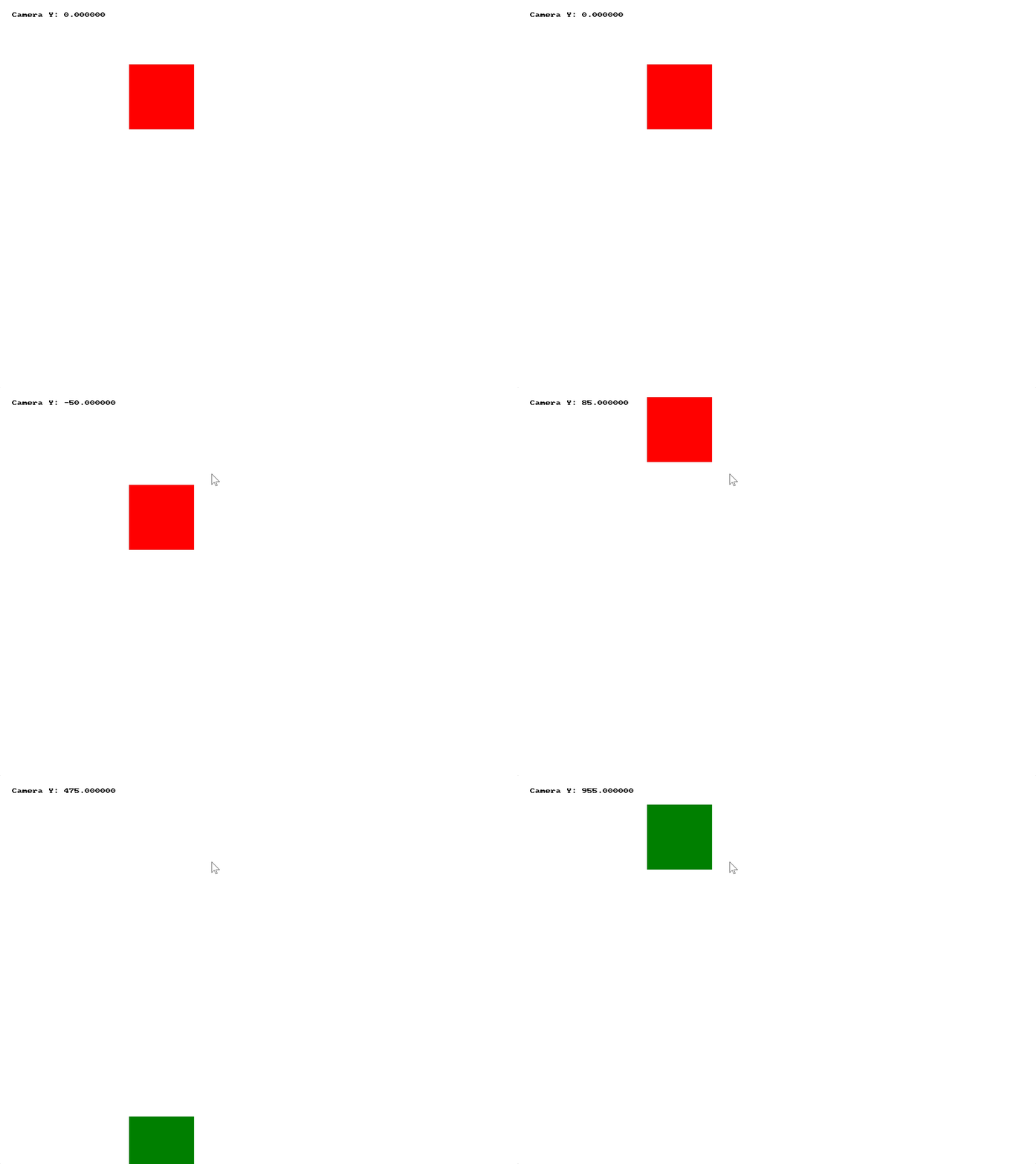
Returns the y location of the camera in game coordinates. This represents the stop most y value shown on the screen, with bottom of screen being at camera y + screen height.
Return Type: Double
Returns: The y location of the camera in game coordinates.
Signatures:
public static double Camera . Y { get }
public static double SplashKit . CameraY ();
function CameraY (): Double
Usage: {</>}
See Implementations Tutorials and Guides :
API Documentation Code Examples :
Set Camera Y : Set the camera Y position using the arrow keys.
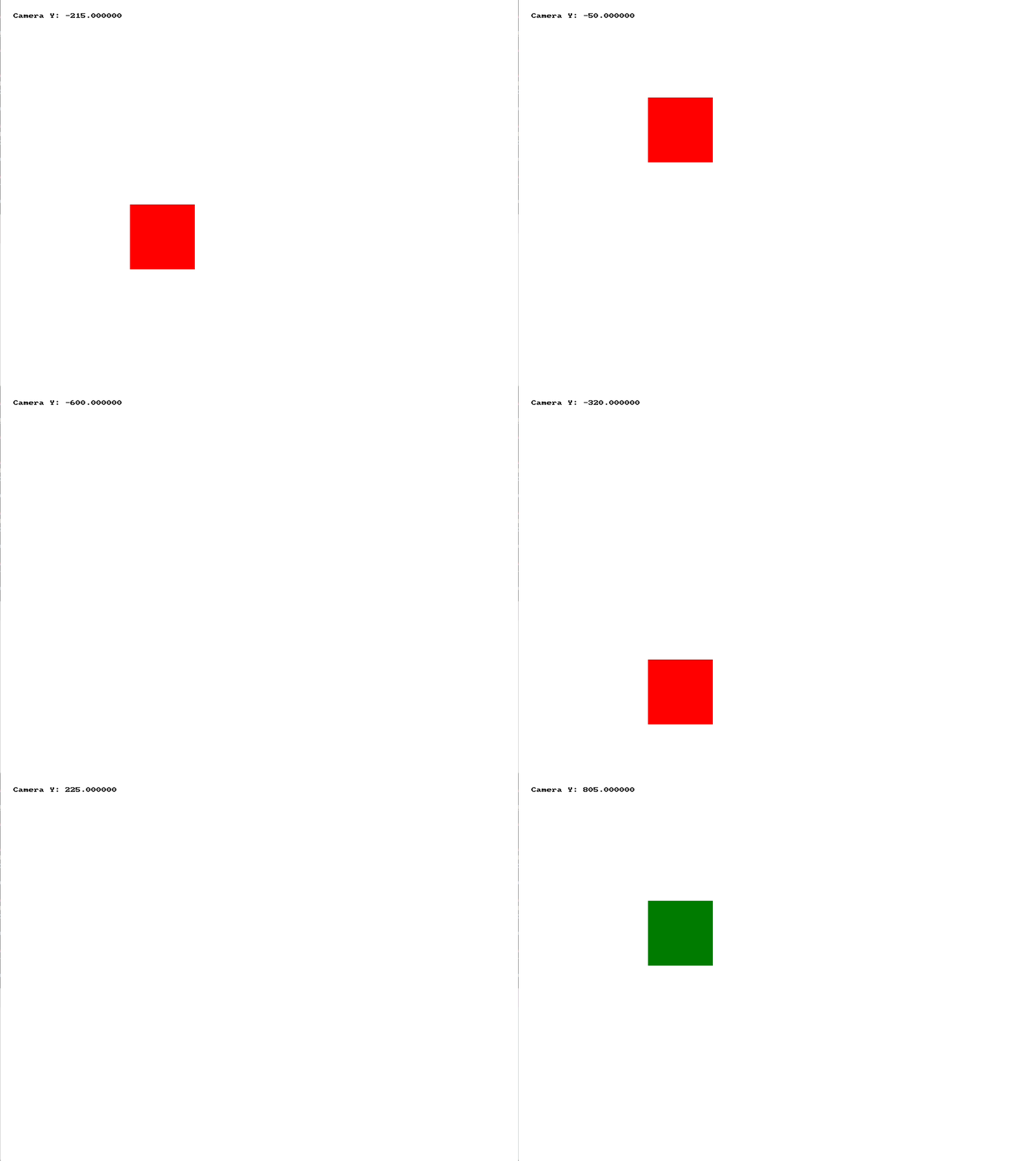
See Code Examples Example 1 : Read the camera Y position while moving vertically.
open_window ( " Camera Y Example " , 800 , 600 );
while ( ! quit_requested ())
clear_screen (COLOR_WHITE);
fill_rectangle (COLOR_RED, 200 , 100 , 100 , 100 );
fill_rectangle (COLOR_GREEN, 200 , 1000 , 100 , 100 );
" Camera Y: " + std:: to_string ( camera_y ()),
using static SplashKitSDK . SplashKit;
OpenWindow ( " Camera Y Example " , 800 , 600 );
if ( KeyDown ( KeyCode . UpKey ))
if ( KeyDown ( KeyCode . DownKey ))
ClearScreen ( ColorWhite ());
FillRectangle ( ColorRed (), 200 , 100 , 100 , 100 );
FillRectangle ( ColorGreen (), 200 , 1000 , 100 , 100 );
" Camera Y: " + CameraY () . ToString (),
public static void Main ()
SplashKit . OpenWindow ( " Camera Y Example " , 800 , 600 );
while ( ! SplashKit . QuitRequested ())
SplashKit . ProcessEvents ();
if ( SplashKit . KeyDown ( KeyCode . UpKey ))
SplashKit . MoveCameraBy ( 0 , - 5 );
if ( SplashKit . KeyDown ( KeyCode . DownKey ))
SplashKit . MoveCameraBy ( 0 , 5 );
SplashKit . ClearScreen ( SplashKit . ColorWhite ());
SplashKit . FillRectangle ( SplashKit . ColorRed (), 200 , 100 , 100 , 100 );
SplashKit . FillRectangle ( SplashKit . ColorGreen (), 200 , 1000 , 100 , 100 );
" Camera Y: " + SplashKit . CameraY () . ToString (),
SplashKit . OptionToScreen ()
SplashKit . RefreshScreen ( 60 );
SplashKit . CloseAllWindows ();
open_window ( " Camera Y Example " , 800 , 600 )
while not quit_requested ():
if key_down ( KeyCode.up_key ):
if key_down ( KeyCode.down_key ):
clear_screen ( color_white ())
fill_rectangle ( color_red () , 200 , 100 , 100 , 100 )
fill_rectangle ( color_green () , 200 , 1000 , 100 , 100 )
draw_text_no_font_no_size_with_options (
" Camera Y: " + str ( camera_y ()) ,
refresh_screen_with_target_fps ( 60 )
Output :
Set the camera view to be centered over the specific sprite. The offset vector allows you to move the sprite from the direct center of the screen.
Parameters:
Name Type Description s SpriteThe sprite to track. offset Vector 2dThe amount to offset the camera, allowing you to position the sprite away from the center of the screen.
Signatures:
void center_camera_on (sprite s , const vector_2d & offset )
public static void Camera . CenterOn (Sprite s, Vector2D offset);
public static void SplashKit . CenterCameraOn (Sprite s, Vector2D offset);
def center_camera_on_vector ( s , offset ) :
procedure CenterCameraOn (s: Sprite; const offset: Vector2D)
Set the camera view to be centered over the specific sprite. The offset vector allows you to move the sprite from the direct center of the screen.
Parameters:
Name Type Description s SpriteThe sprite to track. offset_x DoubleAn additional offset added to the camera, allowing you to position the sprite offset from the center of the screen. offset_y DoubleAn additional offset added to the camera, allowing you to position the sprite offset from the center of the screen.
Signatures:
void center_camera_on (sprite s , double offset_x , double offset_y )
public static void Camera . CenterOn (Sprite s, double offsetX, double offsetY);
public static void SplashKit . CenterCameraOn (Sprite s, double offsetX, double offsetY);
def center_camera_on ( s , offset_x , offset_y ) :
procedure CenterCameraOn (s: Sprite; offsetX: Double ; offsetY: Double )
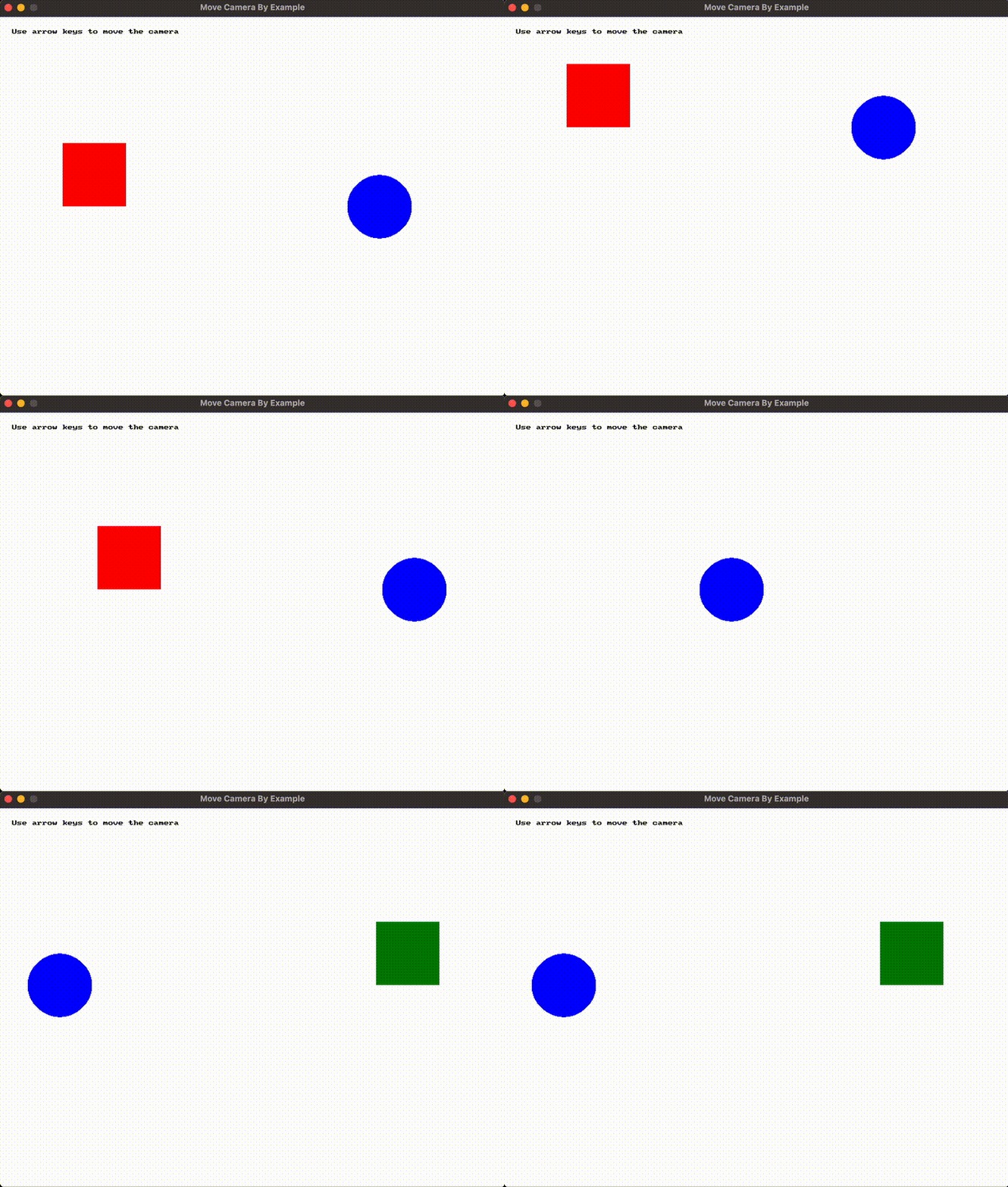
Move the camera (offset its world x and y values) using the specified vector. For example, if you move the camera by the same speed vector of a sprite the camera will “track” (be locked on to) the sprite as it moves.
Parameters:
Name Type Description offset Vector 2dThe amount to move the camera.
Signatures:
void move_camera_by ( const vector_2d & offset )
public static void Camera . MoveBy (Vector2D offset);
public static void SplashKit . MoveCameraBy (Vector2D offset);
def move_camera_by_vector ( offset ) :
procedure MoveCameraBy ( const offset: Vector2D)
Move the camera (offset its world x and y values) using the specified dx (change in x) and dy (change in x) values.
Parameters:
Name Type Description dx DoubleThe amount to move the camera along the x axis. dy DoubleThe amount to move the camera along the y axis.
Signatures:
void move_camera_by ( double dx , double dy )
public static void Camera . MoveBy ( double dx, double dy);
public static void SplashKit . MoveCameraBy ( double dx, double dy);
def move_camera_by ( dx , dy ) :
procedure MoveCameraBy (dx: Double ; dy: Double )
Usage: {</>}
See Implementations Tutorials and Guides :
API Documentation Code Examples :
See Code Examples Example 1 : Move the camera using the arrow keys.
open_window ( " Move Camera By Example " , 800 , 600 );
while ( ! quit_requested ())
// Move the camera using the arrow keys
clear_screen (COLOR_WHITE);
// Stationary objects in the game world
fill_rectangle (COLOR_RED, 100 , 200 , 100 , 100 );
fill_circle (COLOR_BLUE, 600 , 300 , 50 );
fill_rectangle (COLOR_GREEN, 1100 , 200 , 100 , 100 );
fill_circle (COLOR_RED, 600 , 800 , 60 );
// Keep the instructions fixed on the screen
" Use arrow keys to move the camera " ,
using static SplashKitSDK . SplashKit;
OpenWindow ( " Move Camera By Example " , 800 , 600 );
// Move the camera using the arrow keys
if ( KeyDown ( KeyCode . LeftKey ))
if ( KeyDown ( KeyCode . RightKey ))
if ( KeyDown ( KeyCode . UpKey ))
if ( KeyDown ( KeyCode . DownKey ))
ClearScreen ( ColorWhite ());
// Stationary objects in the game world
FillRectangle ( ColorRed (), 100 , 200 , 100 , 100 );
FillCircle ( ColorBlue (), 600 , 300 , 50 );
FillRectangle ( ColorGreen (), 1100 , 200 , 100 , 100 );
FillCircle ( ColorRed (), 600 , 800 , 60 );
" Use arrow keys to move the camera " ,
namespace MoveCameraByExample
public static void Main ()
SplashKit . OpenWindow ( " Move Camera By Example " , 800 , 600 );
while ( ! SplashKit . QuitRequested ())
SplashKit . ProcessEvents ();
// Move the camera using the arrow keys
if ( SplashKit . KeyDown ( KeyCode . LeftKey ))
SplashKit . MoveCameraBy ( - 5 , 0 );
if ( SplashKit . KeyDown ( KeyCode . RightKey ))
SplashKit . MoveCameraBy ( 5 , 0 );
if ( SplashKit . KeyDown ( KeyCode . UpKey ))
SplashKit . MoveCameraBy ( 0 , - 5 );
if ( SplashKit . KeyDown ( KeyCode . DownKey ))
SplashKit . MoveCameraBy ( 0 , 5 );
SplashKit . ClearScreen ( SplashKit . ColorWhite ());
// Stationary objects in the game world
" Use arrow keys to move the camera " ,
SplashKit . OptionToScreen ()
SplashKit . RefreshScreen ( 60 );
SplashKit . CloseAllWindows ();
open_window ( " Move Camera By Example " , 800 , 600 )
while not quit_requested ():
# Move the camera using the arrow keys
if key_down ( KeyCode.left_key ):
if key_down ( KeyCode.right_key ):
if key_down ( KeyCode.up_key ):
if key_down ( KeyCode.down_key ):
clear_screen ( color_white ())
# Stationary objects in the game world
fill_rectangle ( color_red () , 100 , 200 , 100 , 100 )
fill_circle ( color_blue () , 600 , 300 , 50 )
fill_rectangle ( color_green () , 1100 , 200 , 100 , 100 )
fill_circle ( color_red () , 600 , 800 , 60 )
draw_text_no_font_no_size_with_options (
" Use arrow keys to move the camera " ,
refresh_screen_with_target_fps ( 60 )
Output :
Move the camera view (screen top left) to a specified point in the world. This will be the new top left corner of the screen.
Parameters:
Name Type Description pt Point 2dThe new camera location
Signatures:
void move_camera_to ( const point_2d & pt )
public static void Camera . MoveTo (Point2D pt);
public static void SplashKit . MoveCameraTo (Point2D pt);
def move_camera_to_point ( pt ) :
procedure MoveCameraTo ( const pt: Point2D)
Move the camera view to a world location specified by the x and y values. This will be the new top left corner of the screen.
Parameters:
Name Type Description x DoubleThe new camera x location y DoubleThe new camera y location
Signatures:
void move_camera_to ( double x , double y )
public static void Camera . MoveTo ( double x, double y);
public static void SplashKit . MoveCameraTo ( double x, double y);
def move_camera_to ( x , y ) :
procedure MoveCameraTo (x: Double ; y: Double )
Usage: {</>}
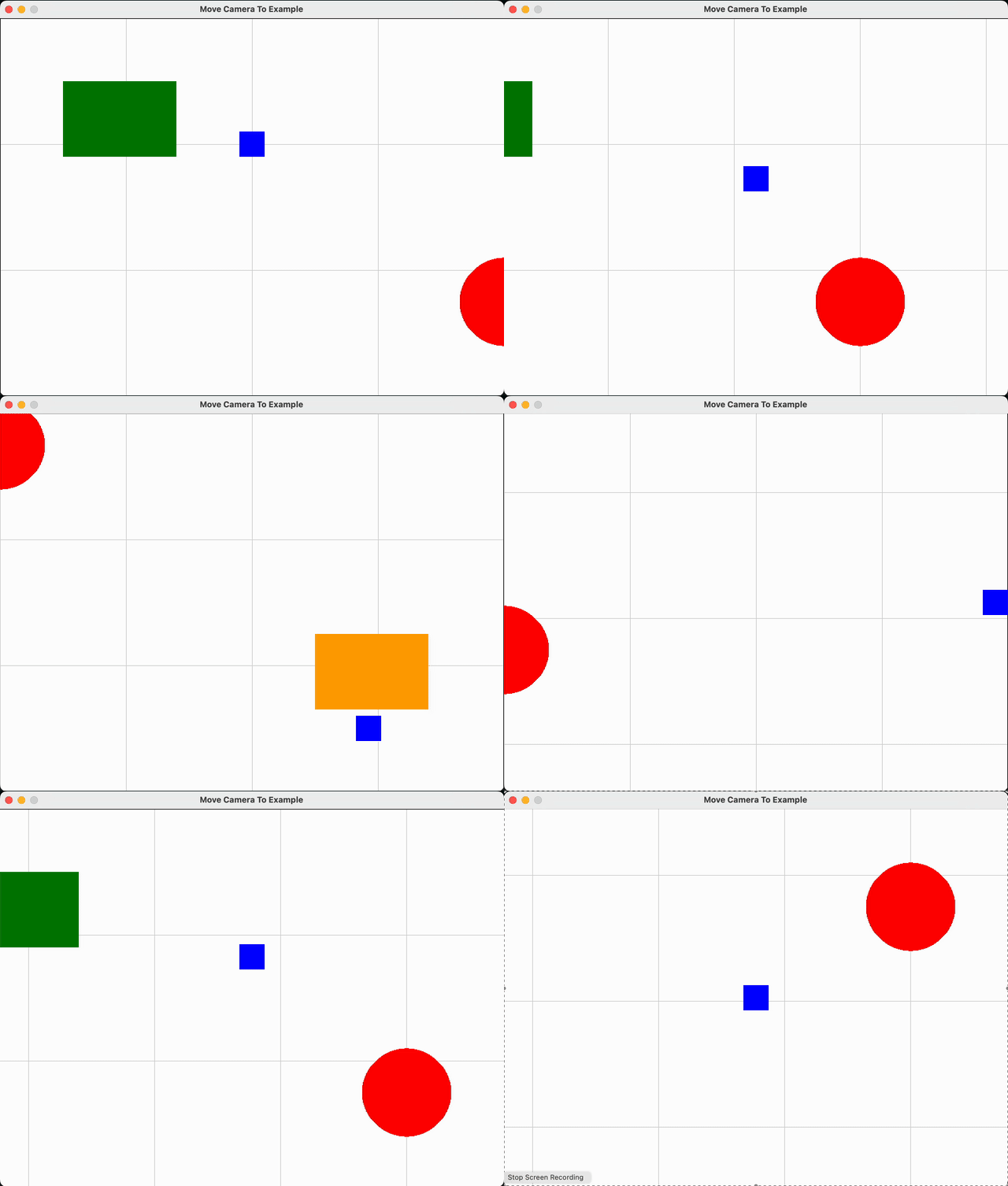
See Code Examples Example 1 : Following a Player Through a Large Game World
const int screen_width = 800 ;
const int screen_height = 600 ;
const int world_width = 1600 ;
const int world_height = 1000 ;
const double player_size = 40 ;
const double movement_speed = 5 ;
open_window ( " Move Camera To Example " , screen_width, screen_height);
while ( ! quit_requested ())
if ( key_down (LEFT_KEY) || key_down (A_KEY))
player_x -= movement_speed;
if ( key_down (RIGHT_KEY) || key_down (D_KEY))
player_x += movement_speed;
if ( key_down (UP_KEY) || key_down (W_KEY))
player_y -= movement_speed;
if ( key_down (DOWN_KEY) || key_down (S_KEY))
player_y += movement_speed;
// Keep the player within the world.
if (player_x > world_width - player_size)
player_x = world_width - player_size;
if (player_y > world_height - player_size)
player_y = world_height - player_size;
// Centre the camera on the player.
player_x + player_size / 2.0 - screen_width / 2.0 ;
player_y + player_size / 2.0 - screen_height / 2.0 ;
// Keep the camera within the world.
if (camera_x > world_width - screen_width)
camera_x = world_width - screen_width;
if (camera_y > world_height - screen_height)
camera_y = world_height - screen_height;
// Move the camera to the calculated world position.
move_camera_to (camera_x, camera_y);
clear_screen (COLOR_WHITE);
// Draw a simple grid to show camera movement.
for ( int x = 0 ; x <= world_width; x += 200 )
draw_line (COLOR_LIGHT_GRAY, x, 0 , x, world_height);
for ( int y = 0 ; y <= world_height; y += 200 )
draw_line (COLOR_LIGHT_GRAY, 0 , y, world_width, y);
// Draw simple landmarks within the world.
fill_rectangle (COLOR_GREEN, 100 , 100 , 180 , 120 );
fill_circle (COLOR_RED, 800 , 450 , 70 );
fill_rectangle (COLOR_ORANGE, 1300 , 750 , 180 , 120 );
// Draw the world boundary and player.
draw_rectangle (COLOR_BLACK, 0 , 0 , world_width, world_height);
using static SplashKitSDK . SplashKit;
const int ScreenWidth = 800 ;
const int ScreenHeight = 600 ;
const int WorldWidth = 1600 ;
const int WorldHeight = 1000 ;
const double PlayerSize = 40 ;
const double MovementSpeed = 5 ;
" Move Camera To Example " ,
if ( KeyDown ( KeyCode . LeftKey ) || KeyDown ( KeyCode . AKey ))
playerX -= MovementSpeed;
if ( KeyDown ( KeyCode . RightKey ) || KeyDown ( KeyCode . DKey ))
playerX += MovementSpeed;
if ( KeyDown ( KeyCode . UpKey ) || KeyDown ( KeyCode . WKey ))
playerY -= MovementSpeed;
if ( KeyDown ( KeyCode . DownKey ) || KeyDown ( KeyCode . SKey ))
playerY += MovementSpeed;
// Keep the player within the world.
if (playerX > WorldWidth - PlayerSize)
playerX = WorldWidth - PlayerSize;
if (playerY > WorldHeight - PlayerSize)
playerY = WorldHeight - PlayerSize;
// Centre the camera on the player.
playerX + PlayerSize / 2 - ScreenWidth / 2.0 ;
playerY + PlayerSize / 2 - ScreenHeight / 2.0 ;
// Keep the camera within the world.
if (cameraX > WorldWidth - ScreenWidth)
cameraX = WorldWidth - ScreenWidth;
if (cameraY > WorldHeight - ScreenHeight)
cameraY = WorldHeight - ScreenHeight;
// Move the camera to the calculated world position.
MoveCameraTo (cameraX, cameraY);
ClearScreen ( ColorWhite ());
// Draw a simple grid to show camera movement.
for ( int x = 0 ; x <= WorldWidth; x += 200 )
for ( int y = 0 ; y <= WorldHeight; y += 200 )
// Draw simple landmarks within the world.
FillRectangle ( ColorGreen (), 100 , 100 , 180 , 120 );
FillCircle ( ColorRed (), 800 , 450 , 70 );
FillRectangle ( ColorOrange (), 1300 , 750 , 180 , 120 );
// Draw the world boundary and player.
namespace MoveCameraToExample
public static void Main ()
const int screenWidth = 800 ;
const int screenHeight = 600 ;
const int worldWidth = 1600 ;
const int worldHeight = 1000 ;
const double playerSize = 40 ;
const double movementSpeed = 5 ;
" Move Camera To Example " ,
while ( ! SplashKit . QuitRequested ())
SplashKit . ProcessEvents ();
SplashKit . KeyDown ( KeyCode . LeftKey ) ||
SplashKit . KeyDown ( KeyCode . AKey )
playerX -= movementSpeed;
SplashKit . KeyDown ( KeyCode . RightKey ) ||
SplashKit . KeyDown ( KeyCode . DKey )
playerX += movementSpeed;
SplashKit . KeyDown ( KeyCode . UpKey ) ||
SplashKit . KeyDown ( KeyCode . WKey )
playerY -= movementSpeed;
SplashKit . KeyDown ( KeyCode . DownKey ) ||
SplashKit . KeyDown ( KeyCode . SKey )
playerY += movementSpeed;
// Keep the player within the world.
if (playerX > worldWidth - playerSize)
playerX = worldWidth - playerSize;
if (playerY > worldHeight - playerSize)
playerY = worldHeight - playerSize;
// Centre the camera on the player.
playerX + playerSize / 2 - screenWidth / 2.0 ;
playerY + playerSize / 2 - screenHeight / 2.0 ;
// Keep the camera within the world.
if (cameraX > worldWidth - screenWidth)
cameraX = worldWidth - screenWidth;
if (cameraY > worldHeight - screenHeight)
cameraY = worldHeight - screenHeight;
// Move the camera to the calculated world position.
SplashKit . MoveCameraTo (cameraX, cameraY);
// Draw a simple grid to show camera movement.
for ( int x = 0 ; x <= worldWidth; x += 200 )
SplashKit . ColorLightGray (),
for ( int y = 0 ; y <= worldHeight; y += 200 )
SplashKit . ColorLightGray (),
// Draw simple landmarks within the world.
// Draw the world boundary and player.
SplashKit . RefreshScreen ( 60 );
SplashKit . CloseAllWindows ();
" Move Camera To Example " ,
while not quit_requested ():
if key_down ( KeyCode.left_key ) or key_down ( KeyCode.a_key ):
player_x -= MOVEMENT_SPEED
if key_down ( KeyCode.right_key ) or key_down ( KeyCode.d_key ):
player_x += MOVEMENT_SPEED
if key_down ( KeyCode.up_key ) or key_down ( KeyCode.w_key ):
player_y -= MOVEMENT_SPEED
if key_down ( KeyCode.down_key ) or key_down ( KeyCode.s_key ):
player_y += MOVEMENT_SPEED
# Keep the player within the world.
if player_x > WORLD_WIDTH - PLAYER_SIZE :
player_x = WORLD_WIDTH - PLAYER_SIZE
if player_y > WORLD_HEIGHT - PLAYER_SIZE :
player_y = WORLD_HEIGHT - PLAYER_SIZE
# Centre the camera on the player.
# Keep the camera within the world.
if camera_x > WORLD_WIDTH - SCREEN_WIDTH :
camera_x = WORLD_WIDTH - SCREEN_WIDTH
if camera_y > WORLD_HEIGHT - SCREEN_HEIGHT :
camera_y = WORLD_HEIGHT - SCREEN_HEIGHT
# Move the camera to the calculated world position.
move_camera_to ( camera_x , camera_y )
clear_screen ( color_white ())
# Draw a simple grid to show camera movement.
for x in range ( 0 , WORLD_WIDTH + 1 , 200 ):
for y in range ( 0 , WORLD_HEIGHT + 1 , 200 ):
# Draw simple landmarks within the world.
fill_rectangle ( color_green () , 100 , 100 , 180 , 120 )
fill_circle ( color_red () , 800 , 450 , 70 )
fill_rectangle ( color_orange () , 1300 , 750 , 180 , 120 )
# Draw the world boundary and player.
Output :
Tests if the point is in the window.
Parameters:
Name Type Description wind WindowThe window to check pt Point 2dThe point to check.
Return Type: Boolean
Returns: True if the point is on the screen.
Signatures:
bool point_in_window (window wind , const point_2d & pt )
public static bool Camera . PointInWindow (Window wind, Point2D pt);
public static bool SplashKit . PointInWindow (Window wind, Point2D pt);
def point_in_window ( wind , pt ) :
function PointInWindow (wind: Window; const pt: Point2D): Boolean
Tests if the point is on the screen.
Parameters:
Name Type Description pt Point 2dThe point to check.
Return Type: Boolean
Returns: True if the point is on the screen.
Signatures:
bool point_on_screen ( const point_2d & pt )
public static bool Camera . PointOnScreen (Point2D pt);
public static bool SplashKit . PointOnScreen (Point2D pt);
function PointOnScreen ( const pt: Point2D): Boolean
Usage: {</>}
See Code Examples Example 1 : Checking Whether a World Point is Visible on Screen
open_window ( " Point On Screen Example " , 400 , 300 );
// Load the font used to display the visibility status text
font status_font = load_font ( " StatusFont " , " DejaVuSans.ttf " );
// A fixed point in the world we will check each frame
point_2d world_point = point_at ( 500 , 100 );
while ( ! quit_requested ())
clear_screen (COLOR_WHITE);
// Move the camera position each frame
set_camera_position ( point_at (camera_x, 0 ));
// Draw a circle at the fixed world point - it does not move itself
fill_circle (COLOR_RED, world_point, 20 );
// Convert the world point to screen coordinates, then check visibility
// The text is drawn to_screen so it stays fixed and does not scroll with the camera
if ( point_on_screen ( to_screen (world_point)))
draw_text ( " Point On Screen: TRUE " , COLOR_BLACK, status_font, 20 , 10 , 10 , option_to_screen ());
draw_text ( " Point On Screen: FALSE " , COLOR_BLACK, status_font, 20 , 10 , 10 , option_to_screen ());
using static SplashKitSDK . SplashKit;
OpenWindow ( " Point On Screen Example " , 400 , 300 );
// Load the font used to display the visibility status text
Font statusFont = LoadFont ( " StatusFont " , " DejaVuSans.ttf " );
// A fixed point in the world we will check each frame
Point2D worldPoint = PointAt ( 500 , 100 );
ClearScreen ( Color . White );
// Move the camera position each frame
SetCameraPosition ( PointAt (cameraX, 0 ));
// Draw a circle at the fixed world point - it does not move itself
FillCircle ( Color . Red , worldPoint, 20 );
// Convert the world point to screen coordinates, then check visibility
// The text is drawn to_screen so it stays fixed and does not scroll with the camera
if ( PointOnScreen ( ToScreen (worldPoint)))
DrawText ( " Point On Screen: TRUE " , Color . Black , statusFont, 20 , 10 , 10 , OptionToScreen ());
DrawText ( " Point On Screen: FALSE " , Color . Black , statusFont, 20 , 10 , 10 , OptionToScreen ());
namespace PointOnScreenExample
public static void Main ()
SplashKit . OpenWindow ( " Point On Screen Example " , 400 , 300 );
// Load the font used to display the visibility status text
Font statusFont = SplashKit . LoadFont ( " StatusFont " , " DejaVuSans.ttf " );
// A fixed point in the world we will check each frame
Point2D worldPoint = SplashKit . PointAt ( 500 , 100 );
while ( ! SplashKit . QuitRequested ())
SplashKit . ProcessEvents ();
SplashKit . ClearScreen ( Color . White );
// Move the camera position each frame
SplashKit . SetCameraPosition ( SplashKit . PointAt (cameraX, 0 ));
// Draw a circle at the fixed world point - it does not move itself
SplashKit . FillCircle ( Color . Red , worldPoint, 20 );
// Convert the world point to screen coordinates, then check visibility
// The text is drawn to_screen so it stays fixed and does not scroll with the camera
if ( SplashKit . PointOnScreen ( SplashKit . ToScreen (worldPoint)))
SplashKit . DrawText ( " Point On Screen: TRUE " , Color . Black , statusFont, 20 , 10 , 10 , SplashKit . OptionToScreen ());
SplashKit . DrawText ( " Point On Screen: FALSE " , Color . Black , statusFont, 20 , 10 , 10 , SplashKit . OptionToScreen ());
SplashKit . RefreshScreen ( 60 );
SplashKit . CloseAllWindows ();
open_window ( " Point On Screen Example " , 400 , 300 )
# Load the font used to display the visibility status text
status_font = load_font ( " StatusFont " , " DejaVuSans.ttf " )
# A fixed point in the world we will check each frame
world_point = point_at ( 500 , 100 )
while not quit_requested ():
clear_screen ( color_white ())
# Move the camera position each frame
set_camera_position ( point_at ( camera_x , 0 ))
# Draw a circle at the fixed world point - it does not move itself
fill_circle_at_point ( color_red () , world_point , 20 )
# Convert the world point to screen coordinates, then check visibility
# The text is drawn to_screen so it stays fixed and does not scroll with the camera
if point_on_screen ( to_screen_point ( world_point )):
draw_text_with_options ( " Point On Screen: TRUE " , color_black () , status_font , 20 , 10 , 10 , option_to_screen ())
draw_text_with_options ( " Point On Screen: FALSE " , color_black () , status_font , 20 , 10 , 10 , option_to_screen ())
refresh_screen_with_target_fps ( 60 )
Output :
Tests if the rectangle is within the bounds of the window.
Parameters:
Name Type Description wind WindowThe window to check rect RectangleThe rectangle to check.
Return Type: Boolean
Returns: True if any part of the rectangle is in the window.
Signatures:
bool rect_in_window (window wind , const rectangle & rect )
public static bool Camera . RectInWindow (Window wind, Rectangle rect);
public static bool SplashKit . RectInWindow (Window wind, Rectangle rect);
def rect_in_window ( wind , rect ) :
function RectInWindow (wind: Window; const rect: Rectangle): Boolean
Tests if the rectangle is on the screen.
Parameters:
Name Type Description rect RectangleThe rectangle to check.
Return Type: Boolean
Returns: True if any part of the rectangle is on the screen.
Signatures:
bool rect_on_screen ( const rectangle & rect )
public static bool Camera . RectOnScreen (Rectangle rect);
public static bool SplashKit . RectOnScreen (Rectangle rect);
def rect_on_screen ( rect ) :
function RectOnScreen ( const rect: Rectangle): Boolean
Returns the center of the screen in world coordinates.
Return Type: Point 2d
Returns: The center of the screen in world coordinates.
Signatures:
public static Point2D Camera . ScreenCenter { get }
public static Point2D SplashKit . ScreenCenter ();
function ScreenCenter (): Point2D
Usage: {</>}
See Implementations API Documentation Code Examples :
Returns a rectangle that represents the dimensions of the window.
Return Type: Rectangle
Returns: A rectangle representing the dimensions of the current window.
Signatures:
rectangle screen_rectangle ()
public static Rectangle Camera . ScreenRectangle { get }
public static Rectangle SplashKit . ScreenRectangle ();
function ScreenRectangle (): Rectangle
Change the position of the camera to a specified world coordinate. This will then be the new top left most position of the screen within the world.
Parameters:
Name Type Description pos Point 2dThe new location of the camera.
Signatures:
void set_camera_position (point_2d pos )
public static void Camera . Position { set }
public static void SplashKit . SetCameraPosition (Point2D pos);
def set_camera_position ( pos ) :
procedure SetCameraPosition (pos: Point2D)
Usage: {</>}
See Implementations API Documentation Code Examples :
See Code Examples Example 1 : Moving the Camera to Reveal Different Parts of the World
open_window ( " Set Camera Position Example " , 400 , 300 );
while ( ! quit_requested ())
clear_screen (COLOR_WHITE);
// Move the camera position each frame
set_camera_position ( point_at (camera_x, 0 ));
// A stationary object in the world - it does not move itself
fill_rectangle (COLOR_RED, 200 , 100 , 50 , 50 );
using static SplashKitSDK . SplashKit;
OpenWindow ( " Set Camera Position Example " , 400 , 300 );
ClearScreen ( ColorWhite ());
// Move the camera position each frame
SetCameraPosition ( PointAt (cameraX, 0 ));
// A stationary object in the world - it does not move itself
FillRectangle ( ColorRed (), 200 , 100 , 50 , 50 );
namespace SetCameraPositionExample
public static void Main ()
SplashKit . OpenWindow ( " Set Camera Position Example " , 400 , 300 );
while ( ! SplashKit . QuitRequested ())
SplashKit . ProcessEvents ();
SplashKit . ClearScreen ( Color . White );
// Move the camera position each frame
SplashKit . SetCameraPosition ( SplashKit . PointAt (cameraX, 0 ));
// A stationary object in the world - it does not move itself
SplashKit . FillRectangle ( Color . Red , 200 , 100 , 50 , 50 );
SplashKit . RefreshScreen ( 60 );
SplashKit . CloseAllWindows ();
open_window ( " Set Camera Position Example " , 400 , 300 )
while not quit_requested ():
clear_screen ( color_white ())
# Move the camera position each frame
set_camera_position ( point_at ( camera_x , 0 ))
# A stationary object in the world - it does not move itself
fill_rectangle ( color_red () , 200 , 100 , 50 , 50 )
refresh_screen_with_target_fps ( 60 )
Output :
Change the X position of the camera to a specified world coordinate. This will then be the new left most position of the screen within the world.
Parameters:
Name Type Description x DoubleThe new x coordinate for the camera
Signatures:
void set_camera_x ( double x )
public static void Camera . X { set }
public static void SplashKit . SetCameraX ( double x);
procedure SetCameraX (x: Double )
Usage: {</>}
See Code Examples Example 1 : Set the camera X position using the arrow keys.
open_window ( " Set Camera X Example " , 800 , 600 );
while ( ! quit_requested ())
clear_screen (COLOR_WHITE);
fill_rectangle (COLOR_RED, 100 , 200 , 100 , 100 );
fill_rectangle (COLOR_GREEN, 1000 , 200 , 100 , 100 );
" Camera X: " + std:: to_string ( camera_x ()),
using static SplashKitSDK . SplashKit;
OpenWindow ( " Set Camera X Example " , 800 , 600 );
if ( KeyDown ( KeyCode . LeftKey ))
if ( KeyDown ( KeyCode . RightKey ))
ClearScreen ( ColorWhite ());
FillRectangle ( ColorRed (), 100 , 200 , 100 , 100 );
FillRectangle ( ColorGreen (), 1000 , 200 , 100 , 100 );
" Camera X: " + CameraX () . ToString (),
namespace SetCameraXExample
public static void Main ()
SplashKit . OpenWindow ( " Set Camera X Example " , 800 , 600 );
while ( ! SplashKit . QuitRequested ())
SplashKit . ProcessEvents ();
if ( SplashKit . KeyDown ( KeyCode . LeftKey ))
if ( SplashKit . KeyDown ( KeyCode . RightKey ))
SplashKit . ClearScreen ( SplashKit . ColorWhite ());
SplashKit . FillRectangle ( SplashKit . ColorRed (), 100 , 200 , 100 , 100 );
SplashKit . FillRectangle ( SplashKit . ColorGreen (), 1000 , 200 , 100 , 100 );
" Camera X: " + SplashKit . CameraX () . ToString (),
SplashKit . OptionToScreen ()
SplashKit . RefreshScreen ( 60 );
SplashKit . CloseAllWindows ();
open_window ( " Set Camera X Example " , 800 , 600 )
while not quit_requested ():
if key_down ( KeyCode.left_key ):
if key_down ( KeyCode.right_key ):
clear_screen ( color_white ())
fill_rectangle ( color_red () , 100 , 200 , 100 , 100 )
fill_rectangle ( color_green () , 1000 , 200 , 100 , 100 )
draw_text_no_font_no_size_with_options (
" Camera X: " + str ( camera_x ()) ,
refresh_screen_with_target_fps ( 60 )
Output :
Change the Y position of the camera to a specified world coordinate. This will then be the new top most position of the screen within the world.
Parameters:
Name Type Description y DoubleThe new y coordinate for the camera
Signatures:
void set_camera_y ( double y )
public static void Camera . Y { set }
public static void SplashKit . SetCameraY ( double y);
procedure SetCameraY (y: Double )
Usage: {</>}
See Code Examples Example 1 : Set the camera Y position using the arrow keys.
open_window ( " Set Camera Y Example " , 800 , 600 );
while ( ! quit_requested ())
clear_screen (COLOR_WHITE);
fill_rectangle (COLOR_RED, 200 , 100 , 100 , 100 );
fill_rectangle (COLOR_GREEN, 200 , 1000 , 100 , 100 );
" Camera Y: " + std:: to_string ( camera_y ()),
using static SplashKitSDK . SplashKit;
OpenWindow ( " Set Camera Y Example " , 800 , 600 );
if ( KeyDown ( KeyCode . UpKey ))
if ( KeyDown ( KeyCode . DownKey ))
ClearScreen ( ColorWhite ());
FillRectangle ( ColorRed (), 200 , 100 , 100 , 100 );
FillRectangle ( ColorGreen (), 200 , 1000 , 100 , 100 );
" Camera Y: " + CameraY () . ToString (),
namespace SetCameraYExample
public static void Main ()
SplashKit . OpenWindow ( " Set Camera Y Example " , 800 , 600 );
while ( ! SplashKit . QuitRequested ())
SplashKit . ProcessEvents ();
if ( SplashKit . KeyDown ( KeyCode . UpKey ))
if ( SplashKit . KeyDown ( KeyCode . DownKey ))
SplashKit . ClearScreen ( SplashKit . ColorWhite ());
SplashKit . FillRectangle ( SplashKit . ColorRed (), 200 , 100 , 100 , 100 );
SplashKit . FillRectangle ( SplashKit . ColorGreen (), 200 , 1000 , 100 , 100 );
" Camera Y: " + SplashKit . CameraY () . ToString (),
SplashKit . OptionToScreen ()
SplashKit . RefreshScreen ( 60 );
SplashKit . CloseAllWindows ();
open_window ( " Set Camera Y Example " , 800 , 600 )
while not quit_requested ():
if key_down ( KeyCode.up_key ):
if key_down ( KeyCode.down_key ):
clear_screen ( color_white ())
fill_rectangle ( color_red () , 200 , 100 , 100 , 100 )
fill_rectangle ( color_green () , 200 , 1000 , 100 , 100 )
draw_text_no_font_no_size_with_options (
" Camera Y: " + str ( camera_y ()) ,
refresh_screen_with_target_fps ( 60 )
Output :
Convert the passed in world coordinates to screen coordinates.
Parameters:
Name Type Description pt Point 2dThe point to convert - this should be in world coordinates.
Return Type: Point 2d
Returns: A point that represents pt in screen coordinates.
Signatures:
point_2d to_screen ( const point_2d & pt )
public static Point2D Camera . ToScreen (Point2D pt);
public static Point2D SplashKit . ToScreen (Point2D pt);
function ToScreen ( const pt: Point2D): Point2D
Usage: {</>}
See Implementations API Documentation Code Examples :
Convert the rectangle in world coordinates to screen coordinates.
Parameters:
Name Type Description rect RectangleThe rectangle to convert - this should be in world coordinates.
Return Type: Rectangle
Returns: A rectangle that represents rect in screen coordinates.
Signatures:
rectangle to_screen ( const rectangle & rect )
public static Rectangle Camera . ToScreen (Rectangle rect);
public static Rectangle SplashKit . ToScreen (Rectangle rect);
def to_screen_rectangle ( rect ) :
function ToScreen ( const rect: Rectangle): Rectangle
Translate a world x value to the current screen x value which is based on the camera position.
Parameters:
Name Type Description world_x DoubleThe value of the x coordinate to translate to screen.
Return Type: Double
Returns: The x location of the world coordinate on the screen.
Signatures:
double to_screen_x ( double world_x )
public static double Camera . ToScreenX ( double worldX);
public static double SplashKit . ToScreenX ( double worldX);
def to_screen_x ( world_x ) :
function ToScreenX (worldX: Double ): Double
Usage: {</>}
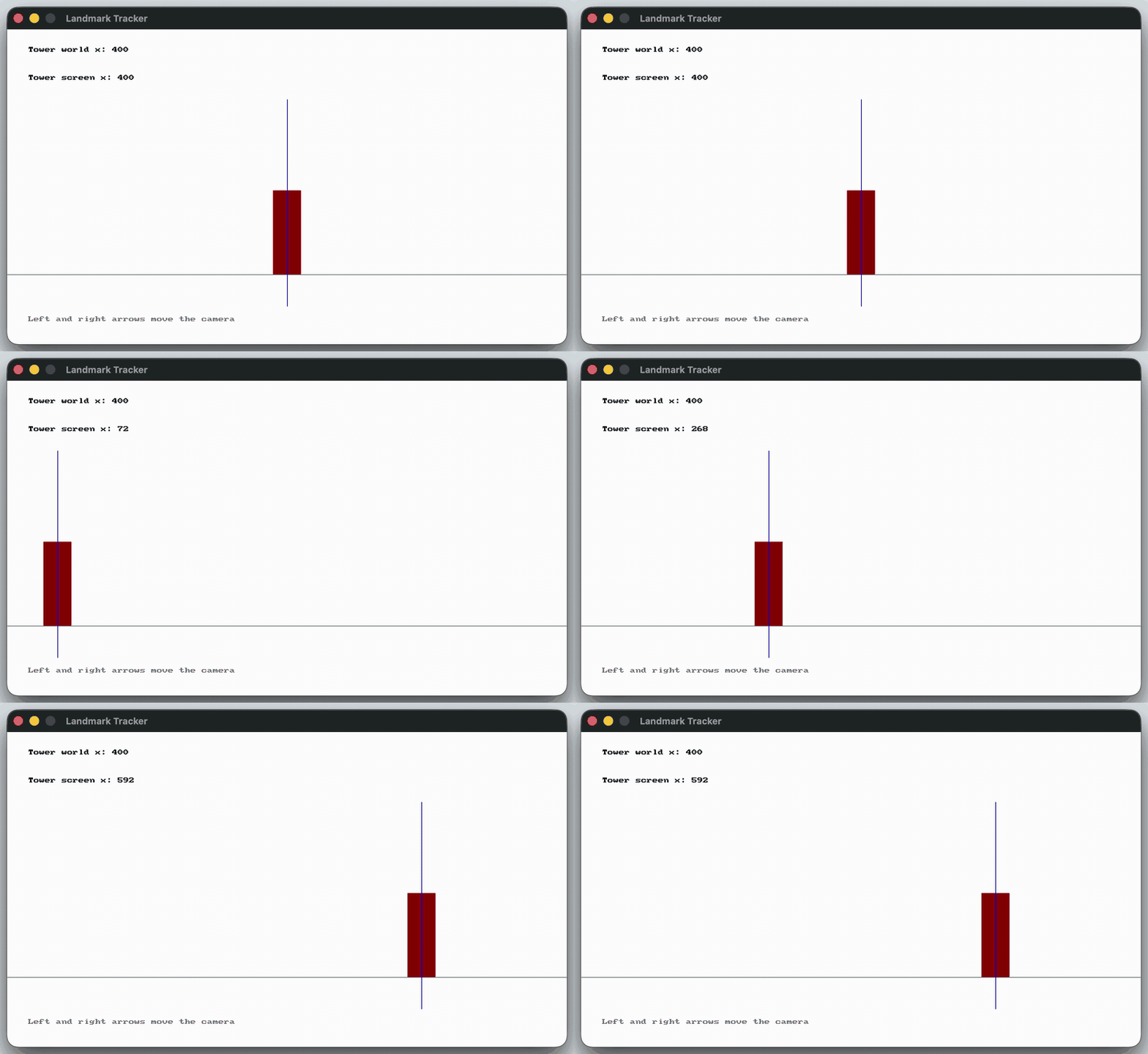
See Code Examples Example 1 : Landmark Tracker
open_window ( " Landmark Tracker " , 800 , 450 );
// The tower stays at this world position, wherever the camera is looking
while ( ! quit_requested ())
// The arrow keys slide the camera along the world
clear_screen (COLOR_WHITE);
// Shapes are drawn in world coordinates, so they slide across the window with the camera
draw_line (COLOR_GRAY, - 2000 , 350 , 4000 , 350 );
fill_rectangle (COLOR_DARK_RED, tower_x - 20 , 230 , 40 , 120 );
// Ask the camera where the tower's world position appears on the screen
double tower_screen_x = to_screen_x (tower_x);
// A marker at that screen position, drawn with option_to_screen() so the camera does not move it
draw_line (COLOR_BLUE, tower_screen_x, 100 , tower_screen_x, 395 , option_to_screen ());
draw_text ( " Tower world x: " + std:: to_string (( int )tower_x), COLOR_BLACK, " arial " , 26 , 30 , 25 , option_to_screen ());
draw_text ( " Tower screen x: " + std:: to_string (( int )tower_screen_x), COLOR_BLACK, " arial " , 26 , 30 , 65 , option_to_screen ());
draw_text ( " Left and right arrows move the camera " , COLOR_GRAY, " arial " , 20 , 30 , 410 , option_to_screen ());
using static SplashKitSDK . SplashKit;
OpenWindow ( " Landmark Tracker " , 800 , 450 );
// The tower stays at this world position, wherever the camera is looking
// The arrow keys slide the camera along the world
if ( KeyDown ( KeyCode . LeftKey ))
if ( KeyDown ( KeyCode . RightKey ))
ClearScreen ( ColorWhite ());
// Shapes are drawn in world coordinates, so they slide across the window with the camera
DrawLine ( ColorGray (), - 2000 , 350 , 4000 , 350 );
FillRectangle ( ColorDarkRed (), towerX - 20 , 230 , 40 , 120 );
// Ask the camera where the tower's world position appears on the screen
double towerScreenX = ToScreenX (towerX);
// A marker at that screen position, drawn with OptionToScreen() so the camera does not move it
DrawLine ( ColorBlue (), towerScreenX, 100 , towerScreenX, 395 , OptionToScreen ());
DrawText ( $" Tower world x: {( int ) towerX } " , ColorBlack (), " arial " , 26 , 30 , 25 , OptionToScreen ());
DrawText ( $" Tower screen x: {( int ) towerScreenX } " , ColorBlack (), " arial " , 26 , 30 , 65 , OptionToScreen ());
DrawText ( " Left and right arrows move the camera " , ColorGray (), " arial " , 20 , 30 , 410 , OptionToScreen ());
namespace ToScreenXExample
public static void Main ()
SplashKit . OpenWindow ( " Landmark Tracker " , 800 , 450 );
// The tower stays at this world position, wherever the camera is looking
while ( ! SplashKit . QuitRequested ())
SplashKit . ProcessEvents ();
// The arrow keys slide the camera along the world
if ( SplashKit . KeyDown ( KeyCode . LeftKey ))
if ( SplashKit . KeyDown ( KeyCode . RightKey ))
SplashKit . ClearScreen ( Color . White );
// Shapes are drawn in world coordinates, so they slide across the window with the camera
SplashKit . DrawLine ( Color . Gray , - 2000 , 350 , 4000 , 350 );
SplashKit . FillRectangle ( Color . DarkRed , towerX - 20 , 230 , 40 , 120 );
// Ask the camera where the tower's world position appears on the screen
double towerScreenX = SplashKit . ToScreenX (towerX);
// A marker at that screen position, drawn with OptionToScreen() so the camera does not move it
SplashKit . DrawLine ( Color . Blue , towerScreenX, 100 , towerScreenX, 395 , SplashKit . OptionToScreen ());
SplashKit . DrawText ( $" Tower world x: {( int ) towerX } " , Color . Black , " arial " , 26 , 30 , 25 , SplashKit . OptionToScreen ());
SplashKit . DrawText ( $" Tower screen x: {( int ) towerScreenX } " , Color . Black , " arial " , 26 , 30 , 65 , SplashKit . OptionToScreen ());
SplashKit . DrawText ( " Left and right arrows move the camera " , Color . Gray , " arial " , 20 , 30 , 410 , SplashKit . OptionToScreen ());
SplashKit . RefreshScreen ( 60 );
SplashKit . CloseAllWindows ();
open_window ( " Landmark Tracker " , 800 , 450 )
# The tower stays at this world position, wherever the camera is looking
while not quit_requested ():
# The arrow keys slide the camera along the world
if key_down ( KeyCode.left_key ):
if key_down ( KeyCode.right_key ):
# Shapes are drawn in world coordinates, so they slide across the window with the camera
draw_line ( color_gray () , - 2000 , 350 , 4000 , 350 )
fill_rectangle ( color_dark_red () , tower_x - 20 , 230 , 40 , 120 )
# Ask the camera where the tower's world position appears on the screen
tower_screen_x = to_screen_x ( tower_x )
# A marker at that screen position, drawn with option_to_screen() so the camera does not move it
draw_line_with_options ( color_blue () , tower_screen_x , 100 , tower_screen_x , 395 , option_to_screen ())
draw_text_with_options_font_as_string ( f "Tower world x: { int ( tower_x ) } " , color_black () , " arial " , 26 , 30 , 25 , option_to_screen ())
draw_text_with_options_font_as_string ( f "Tower screen x: { int ( tower_screen_x ) } " , color_black () , " arial " , 26 , 30 , 65 , option_to_screen ())
draw_text_with_options_font_as_string ( " Left and right arrows move the camera " , color_gray () , " arial " , 20 , 30 , 410 , option_to_screen ())
refresh_screen_with_target_fps ( 60 )
Output :
Translate a world y value to the current screen y value set by the camera.
Parameters:
Name Type Description world_y DoubleThe value of the y coordinate to translate to screen.
Return Type: Double
Returns: The y location of the world coordinate on the screen.
Signatures:
double to_screen_y ( double world_y )
public static double Camera . ToScreenY ( double worldY);
public static double SplashKit . ToScreenY ( double worldY);
def to_screen_y ( world_y ) :
function ToScreenY (worldY: Double ): Double
Usage: {</>}
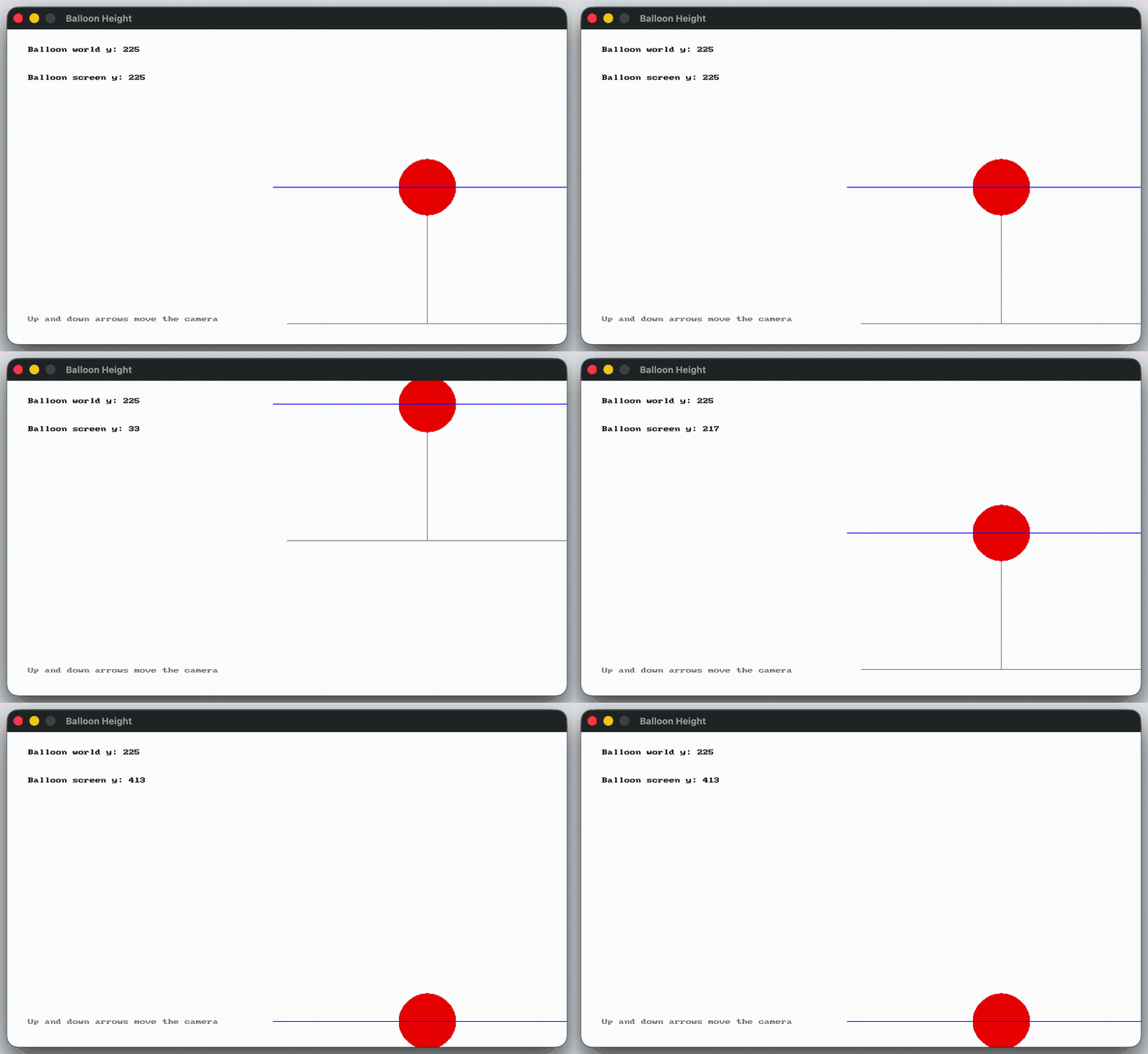
See Code Examples Example 1 : Balloon Height
open_window ( " Balloon Height " , 800 , 450 );
// The balloon stays at this world position, wherever the camera is looking
while ( ! quit_requested ())
// The arrow keys slide the camera up and down the world
clear_screen (COLOR_WHITE);
// Shapes are drawn in world coordinates, so they slide across the window with the camera
draw_line (COLOR_GRAY, 400 , 420 , 800 , 420 );
draw_line (COLOR_GRAY, balloon_x, balloon_y + 40 , balloon_x, 420 );
fill_circle (COLOR_RED, balloon_x, balloon_y, 40 );
// Ask the camera where the balloon's world position appears on the screen
double balloon_screen_y = to_screen_y (balloon_y);
// A marker at that screen position, drawn with option_to_screen() so the camera does not move it
draw_line (COLOR_BLUE, 380 , balloon_screen_y, 800 , balloon_screen_y, option_to_screen ());
draw_text ( " Balloon world y: " + std:: to_string (( int )balloon_y), COLOR_BLACK, " arial " , 26 , 30 , 25 , option_to_screen ());
draw_text ( " Balloon screen y: " + std:: to_string (( int )balloon_screen_y), COLOR_BLACK, " arial " , 26 , 30 , 65 , option_to_screen ());
draw_text ( " Up and down arrows move the camera " , COLOR_GRAY, " arial " , 20 , 30 , 410 , option_to_screen ());
using static SplashKitSDK . SplashKit;
OpenWindow ( " Balloon Height " , 800 , 450 );
// The balloon stays at this world position, wherever the camera is looking
// The arrow keys slide the camera up and down the world
if ( KeyDown ( KeyCode . UpKey ))
if ( KeyDown ( KeyCode . DownKey ))
ClearScreen ( ColorWhite ());
// Shapes are drawn in world coordinates, so they slide across the window with the camera
DrawLine ( ColorGray (), 400 , 420 , 800 , 420 );
DrawLine ( ColorGray (), balloonX, balloonY + 40 , balloonX, 420 );
FillCircle ( ColorRed (), balloonX, balloonY, 40 );
// Ask the camera where the balloon's world position appears on the screen
double balloonScreenY = ToScreenY (balloonY);
// A marker at that screen position, drawn with OptionToScreen() so the camera does not move it
DrawLine ( ColorBlue (), 380 , balloonScreenY, 800 , balloonScreenY, OptionToScreen ());
DrawText ( $" Balloon world y: {( int ) balloonY } " , ColorBlack (), " arial " , 26 , 30 , 25 , OptionToScreen ());
DrawText ( $" Balloon screen y: {( int ) balloonScreenY } " , ColorBlack (), " arial " , 26 , 30 , 65 , OptionToScreen ());
DrawText ( " Up and down arrows move the camera " , ColorGray (), " arial " , 20 , 30 , 410 , OptionToScreen ());
namespace ToScreenYExample
public static void Main ()
SplashKit . OpenWindow ( " Balloon Height " , 800 , 450 );
// The balloon stays at this world position, wherever the camera is looking
while ( ! SplashKit . QuitRequested ())
SplashKit . ProcessEvents ();
// The arrow keys slide the camera up and down the world
if ( SplashKit . KeyDown ( KeyCode . UpKey ))
if ( SplashKit . KeyDown ( KeyCode . DownKey ))
SplashKit . ClearScreen ( Color . White );
// Shapes are drawn in world coordinates, so they slide across the window with the camera
SplashKit . DrawLine ( Color . Gray , 400 , 420 , 800 , 420 );
SplashKit . DrawLine ( Color . Gray , balloonX, balloonY + 40 , balloonX, 420 );
SplashKit . FillCircle ( Color . Red , balloonX, balloonY, 40 );
// Ask the camera where the balloon's world position appears on the screen
double balloonScreenY = SplashKit . ToScreenY (balloonY);
// A marker at that screen position, drawn with OptionToScreen() so the camera does not move it
SplashKit . DrawLine ( Color . Blue , 380 , balloonScreenY, 800 , balloonScreenY, SplashKit . OptionToScreen ());
SplashKit . DrawText ( $" Balloon world y: {( int ) balloonY } " , Color . Black , " arial " , 26 , 30 , 25 , SplashKit . OptionToScreen ());
SplashKit . DrawText ( $" Balloon screen y: {( int ) balloonScreenY } " , Color . Black , " arial " , 26 , 30 , 65 , SplashKit . OptionToScreen ());
SplashKit . DrawText ( " Up and down arrows move the camera " , Color . Gray , " arial " , 20 , 30 , 410 , SplashKit . OptionToScreen ());
SplashKit . RefreshScreen ( 60 );
SplashKit . CloseAllWindows ();
open_window ( " Balloon Height " , 800 , 450 )
# The balloon stays at this world position, wherever the camera is looking
while not quit_requested ():
# The arrow keys slide the camera up and down the world
if key_down ( KeyCode.up_key ):
if key_down ( KeyCode.down_key ):
# Shapes are drawn in world coordinates, so they slide across the window with the camera
draw_line ( color_gray () , 400 , 420 , 800 , 420 )
draw_line ( color_gray () , balloon_x , balloon_y + 40 , balloon_x , 420 )
fill_circle ( color_red () , balloon_x , balloon_y , 40 )
# Ask the camera where the balloon's world position appears on the screen
balloon_screen_y = to_screen_y ( balloon_y )
# A marker at that screen position, drawn with option_to_screen() so the camera does not move it
draw_line_with_options ( color_blue () , 380 , balloon_screen_y , 800 , balloon_screen_y , option_to_screen ())
draw_text_with_options_font_as_string ( f "Balloon world y: { int ( balloon_y ) } " , color_black () , " arial " , 26 , 30 , 25 , option_to_screen ())
draw_text_with_options_font_as_string ( f "Balloon screen y: { int ( balloon_screen_y ) } " , color_black () , " arial " , 26 , 30 , 65 , option_to_screen ())
draw_text_with_options_font_as_string ( " Up and down arrows move the camera " , color_gray () , " arial " , 20 , 30 , 410 , option_to_screen ())
refresh_screen_with_target_fps ( 60 )
Output :
Converts the passed in point from screen coordinates to world coordinates.
Parameters:
Name Type Description pt Point 2dThe point in screen coordinates.
Return Type: Point 2d
Returns: The same point in world coordinates.
Signatures:
point_2d to_world ( const point_2d & pt )
public static Point2D Camera . ToWorld (Point2D pt);
public static Point2D SplashKit . ToWorld (Point2D pt);
function ToWorld ( const pt: Point2D): Point2D
Translate a screen x value (based on the camera) to a world x value
Parameters:
Name Type Description screen_x DoubleThe value of the x coordinate on screen to translate to the world.
Return Type: Double
Returns: The x location of the screen coordinate in the world.
Signatures:
double to_world_x ( double screen_x )
public static double Camera . ToWorldX ( double screenX);
public static double SplashKit . ToWorldX ( double screenX);
def to_world_x ( screen_x ) :
function ToWorldX (screenX: Double ): Double
Usage: {</>}
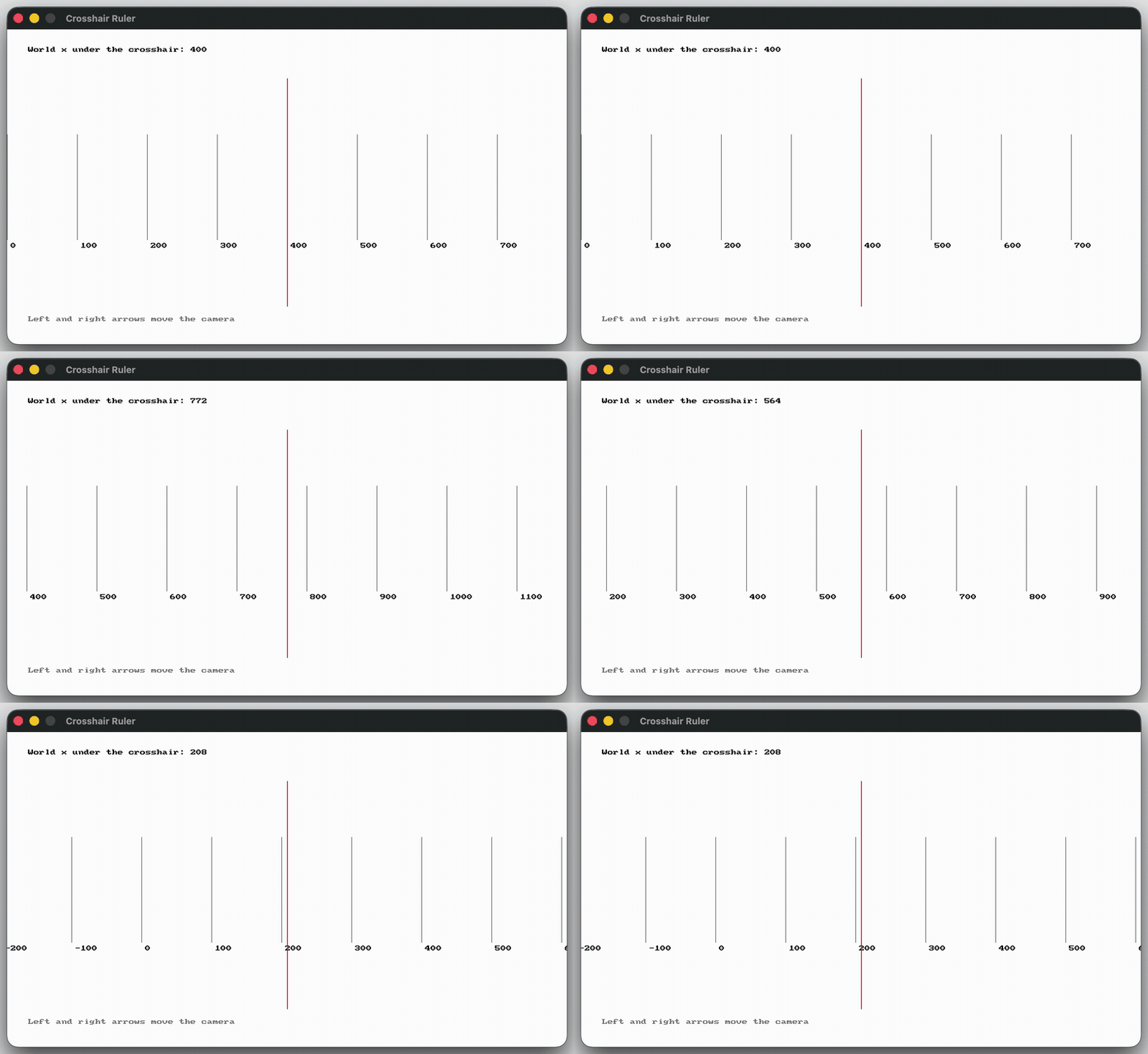
See Code Examples Example 1 : Crosshair Ruler
open_window ( " Crosshair Ruler " , 800 , 450 );
// The crosshair stays in the middle of the window, at this screen position
double crosshair_x = 400 ;
while ( ! quit_requested ())
// The arrow keys slide the camera along the world
clear_screen (COLOR_WHITE);
// The ruler is part of the world, so it slides with the camera
for ( int tick = - 1000 ; tick <= 3000 ; tick += 100 )
draw_line (COLOR_GRAY, tick, 150 , tick, 300 );
draw_text (std:: to_string (tick), COLOR_BLACK, " arial " , 18 , tick + 5 , 305 );
// The crosshair is drawn with option_to_screen() so the camera does not move it
draw_line (COLOR_RED, crosshair_x, 70 , crosshair_x, 395 , option_to_screen ());
// Turn the crosshair's screen position back into a position in the world
double crosshair_world_x = to_world_x (crosshair_x);
draw_text ( " World x under the crosshair: " + std:: to_string (( int )crosshair_world_x), COLOR_BLACK, " arial " , 26 , 30 , 25 , option_to_screen ());
draw_text ( " Left and right arrows move the camera " , COLOR_GRAY, " arial " , 20 , 30 , 410 , option_to_screen ());
using static SplashKitSDK . SplashKit;
OpenWindow ( " Crosshair Ruler " , 800 , 450 );
// The crosshair stays in the middle of the window, at this screen position
// The arrow keys slide the camera along the world
if ( KeyDown ( KeyCode . LeftKey ))
if ( KeyDown ( KeyCode . RightKey ))
ClearScreen ( ColorWhite ());
// The ruler is part of the world, so it slides with the camera
for ( int tick = - 1000 ; tick <= 3000 ; tick += 100 )
DrawLine ( ColorGray (), tick, 150 , tick, 300 );
DrawText ( tick . ToString (), ColorBlack (), " arial " , 18 , tick + 5 , 305 );
// The crosshair is drawn with OptionToScreen() so the camera does not move it
DrawLine ( ColorRed (), crosshairX, 70 , crosshairX, 395 , OptionToScreen ());
// Turn the crosshair's screen position back into a position in the world
double crosshairWorldX = ToWorldX (crosshairX);
DrawText ( $" World x under the crosshair: {( int ) crosshairWorldX } " , ColorBlack (), " arial " , 26 , 30 , 25 , OptionToScreen ());
DrawText ( " Left and right arrows move the camera " , ColorGray (), " arial " , 20 , 30 , 410 , OptionToScreen ());
namespace ToWorldXExample
public static void Main ()
SplashKit . OpenWindow ( " Crosshair Ruler " , 800 , 450 );
// The crosshair stays in the middle of the window, at this screen position
while ( ! SplashKit . QuitRequested ())
SplashKit . ProcessEvents ();
// The arrow keys slide the camera along the world
if ( SplashKit . KeyDown ( KeyCode . LeftKey ))
if ( SplashKit . KeyDown ( KeyCode . RightKey ))
SplashKit . ClearScreen ( Color . White );
// The ruler is part of the world, so it slides with the camera
for ( int tick = - 1000 ; tick <= 3000 ; tick += 100 )
SplashKit . DrawLine ( Color . Gray , tick, 150 , tick, 300 );
SplashKit . DrawText ( tick . ToString (), Color . Black , " arial " , 18 , tick + 5 , 305 );
// The crosshair is drawn with OptionToScreen() so the camera does not move it
SplashKit . DrawLine ( Color . Red , crosshairX, 70 , crosshairX, 395 , SplashKit . OptionToScreen ());
// Turn the crosshair's screen position back into a position in the world
double crosshairWorldX = SplashKit . ToWorldX (crosshairX);
SplashKit . DrawText ( $" World x under the crosshair: {( int ) crosshairWorldX } " , Color . Black , " arial " , 26 , 30 , 25 , SplashKit . OptionToScreen ());
SplashKit . DrawText ( " Left and right arrows move the camera " , Color . Gray , " arial " , 20 , 30 , 410 , SplashKit . OptionToScreen ());
SplashKit . RefreshScreen ( 60 );
SplashKit . CloseAllWindows ();
open_window ( " Crosshair Ruler " , 800 , 450 )
# The crosshair stays in the middle of the window, at this screen position
while not quit_requested ():
# The arrow keys slide the camera along the world
if key_down ( KeyCode.left_key ):
if key_down ( KeyCode.right_key ):
# The ruler is part of the world, so it slides with the camera
for tick in range ( - 1000 , 3001 , 100 ):
draw_line ( color_gray () , tick , 150 , tick , 300 )
draw_text_font_as_string ( str ( tick ) , color_black () , " arial " , 18 , tick + 5 , 305 )
# The crosshair is drawn with option_to_screen() so the camera does not move it
draw_line_with_options ( color_red () , crosshair_x , 70 , crosshair_x , 395 , option_to_screen ())
# Turn the crosshair's screen position back into a position in the world
crosshair_world_x = to_world_x ( crosshair_x )
draw_text_with_options_font_as_string ( f "World x under the crosshair: { int ( crosshair_world_x ) } " , color_black () , " arial " , 26 , 30 , 25 , option_to_screen ())
draw_text_with_options_font_as_string ( " Left and right arrows move the camera " , color_gray () , " arial " , 20 , 30 , 410 , option_to_screen ())
refresh_screen_with_target_fps ( 60 )
Output :
Translate a screen y value (based on the camera) to a world y value
Parameters:
Name Type Description screen_y DoubleThe value of the y coordinate on screen to translate to the world.
Return Type: Double
Returns: The y location of the screen coordinate in the world.
Signatures:
double to_world_y ( double screen_y )
public static double Camera . ToWorldY ( double screenY);
public static double SplashKit . ToWorldY ( double screenY);
def to_world_y ( screen_y ) :
function ToWorldY (screenY: Double ): Double
Usage: {</>}
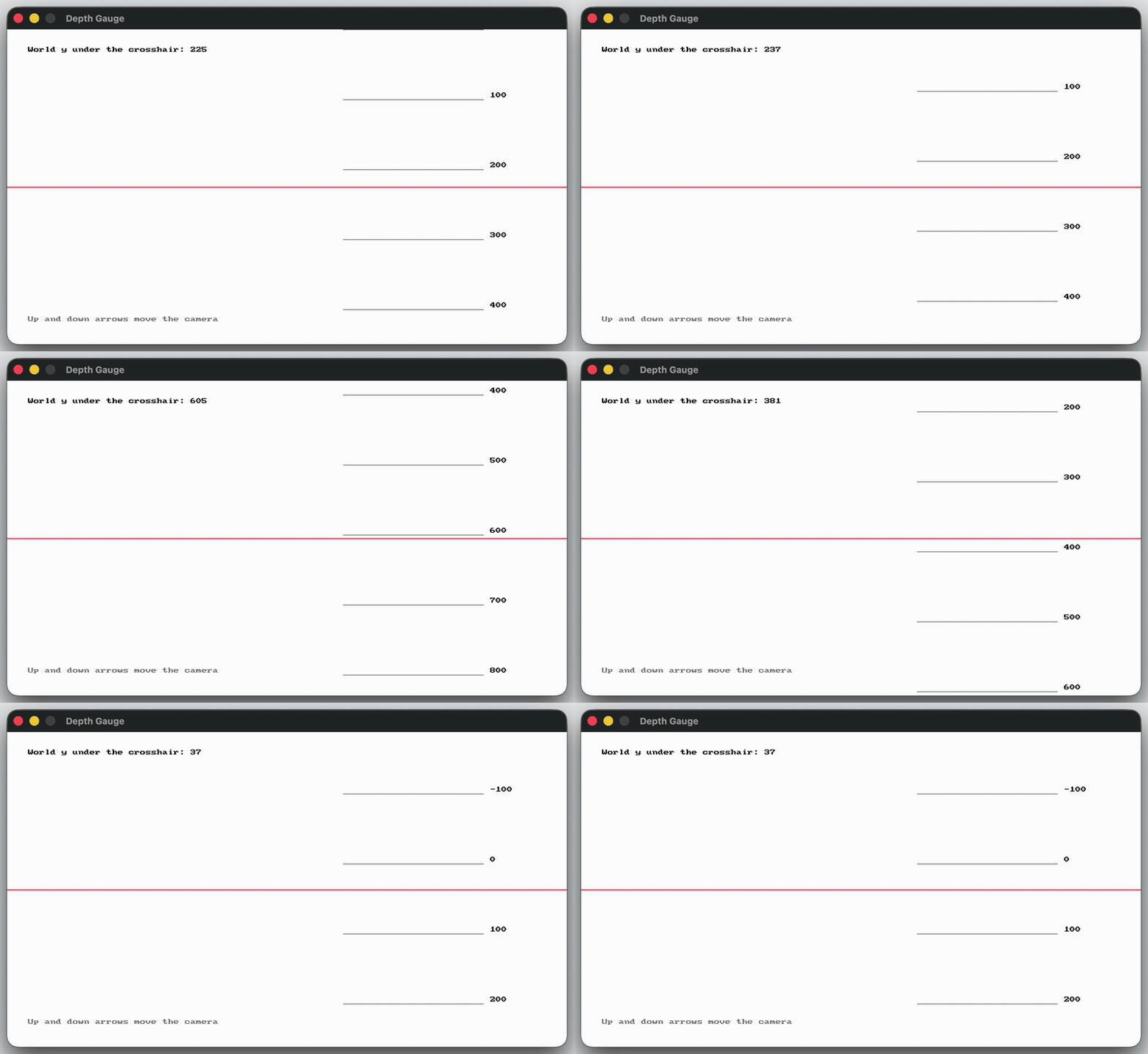
See Code Examples Example 1 : Depth Gauge
open_window ( " Depth Gauge " , 800 , 450 );
// The crosshair stays in the middle of the window, at this screen position
double crosshair_y = 225 ;
while ( ! quit_requested ())
// The arrow keys slide the camera up and down the world
clear_screen (COLOR_WHITE);
// The gauge is part of the world, so it slides with the camera
for ( int tick = - 1000 ; tick <= 3000 ; tick += 100 )
draw_line (COLOR_GRAY, 480 , tick, 680 , tick);
draw_text (std:: to_string (tick), COLOR_BLACK, " arial " , 18 , 690 , tick - 10 );
// The crosshair is drawn with option_to_screen() so the camera does not move it
draw_line (COLOR_RED, 0 , crosshair_y, 800 , crosshair_y, option_to_screen ());
// Turn the crosshair's screen position back into a position in the world
double crosshair_world_y = to_world_y (crosshair_y);
draw_text ( " World y under the crosshair: " + std:: to_string (( int )crosshair_world_y), COLOR_BLACK, " arial " , 26 , 30 , 25 , option_to_screen ());
draw_text ( " Up and down arrows move the camera " , COLOR_GRAY, " arial " , 20 , 30 , 410 , option_to_screen ());
using static SplashKitSDK . SplashKit;
OpenWindow ( " Depth Gauge " , 800 , 450 );
// The crosshair stays in the middle of the window, at this screen position
// The arrow keys slide the camera up and down the world
if ( KeyDown ( KeyCode . UpKey ))
if ( KeyDown ( KeyCode . DownKey ))
ClearScreen ( ColorWhite ());
// The gauge is part of the world, so it slides with the camera
for ( int tick = - 1000 ; tick <= 3000 ; tick += 100 )
DrawLine ( ColorGray (), 480 , tick, 680 , tick);
DrawText ( tick . ToString (), ColorBlack (), " arial " , 18 , 690 , tick - 10 );
// The crosshair is drawn with OptionToScreen() so the camera does not move it
DrawLine ( ColorRed (), 0 , crosshairY, 800 , crosshairY, OptionToScreen ());
// Turn the crosshair's screen position back into a position in the world
double crosshairWorldY = ToWorldY (crosshairY);
DrawText ( $" World y under the crosshair: {( int ) crosshairWorldY } " , ColorBlack (), " arial " , 26 , 30 , 25 , OptionToScreen ());
DrawText ( " Up and down arrows move the camera " , ColorGray (), " arial " , 20 , 30 , 410 , OptionToScreen ());
namespace ToWorldYExample
public static void Main ()
SplashKit . OpenWindow ( " Depth Gauge " , 800 , 450 );
// The crosshair stays in the middle of the window, at this screen position
while ( ! SplashKit . QuitRequested ())
SplashKit . ProcessEvents ();
// The arrow keys slide the camera up and down the world
if ( SplashKit . KeyDown ( KeyCode . UpKey ))
if ( SplashKit . KeyDown ( KeyCode . DownKey ))
SplashKit . ClearScreen ( Color . White );
// The gauge is part of the world, so it slides with the camera
for ( int tick = - 1000 ; tick <= 3000 ; tick += 100 )
SplashKit . DrawLine ( Color . Gray , 480 , tick, 680 , tick);
SplashKit . DrawText ( tick . ToString (), Color . Black , " arial " , 18 , 690 , tick - 10 );
// The crosshair is drawn with OptionToScreen() so the camera does not move it
SplashKit . DrawLine ( Color . Red , 0 , crosshairY, 800 , crosshairY, SplashKit . OptionToScreen ());
// Turn the crosshair's screen position back into a position in the world
double crosshairWorldY = SplashKit . ToWorldY (crosshairY);
SplashKit . DrawText ( $" World y under the crosshair: {( int ) crosshairWorldY } " , Color . Black , " arial " , 26 , 30 , 25 , SplashKit . OptionToScreen ());
SplashKit . DrawText ( " Up and down arrows move the camera " , Color . Gray , " arial " , 20 , 30 , 410 , SplashKit . OptionToScreen ());
SplashKit . RefreshScreen ( 60 );
SplashKit . CloseAllWindows ();
open_window ( " Depth Gauge " , 800 , 450 )
# The crosshair stays in the middle of the window, at this screen position
while not quit_requested ():
# The arrow keys slide the camera up and down the world
if key_down ( KeyCode.up_key ):
if key_down ( KeyCode.down_key ):
# The gauge is part of the world, so it slides with the camera
for tick in range ( - 1000 , 3001 , 100 ):
draw_line ( color_gray () , 480 , tick , 680 , tick )
draw_text_font_as_string ( str ( tick ) , color_black () , " arial " , 18 , 690 , tick - 10 )
# The crosshair is drawn with option_to_screen() so the camera does not move it
draw_line_with_options ( color_red () , 0 , crosshair_y , 800 , crosshair_y , option_to_screen ())
# Turn the crosshair's screen position back into a position in the world
crosshair_world_y = to_world_y ( crosshair_y )
draw_text_with_options_font_as_string ( f "World y under the crosshair: { int ( crosshair_world_y ) } " , color_black () , " arial " , 26 , 30 , 25 , option_to_screen ())
draw_text_with_options_font_as_string ( " Up and down arrows move the camera " , color_gray () , " arial " , 20 , 30 , 410 , option_to_screen ())
refresh_screen_with_target_fps ( 60 )
Output :
Returns a vector that can transform points from world to screen coordinates.
Return Type: Vector 2d
Returns: A vector representing the distance and direction points need
to move to map from world to screen coordinates.
Signatures:
vector_2d vector_world_to_screen ()
public static Vector2D Camera . VectorWorldToScreen { get }
public static Vector2D SplashKit . VectorWorldToScreen ();
def vector_world_to_screen () :
function VectorWorldToScreen (): Vector2D
Returns a rectangle that represents the dimensions of the window based on the camera.
Parameters:
Name Type Description wind WindowThe window
Return Type: Rectangle
Returns: A rectangle representing the dimensions of the current window.
Signatures:
rectangle window_area (window wind )
public Rectangle Window . Area { get }
public static Rectangle SplashKit . WindowArea (Window wind);
function WindowArea (wind: Window): Rectangle